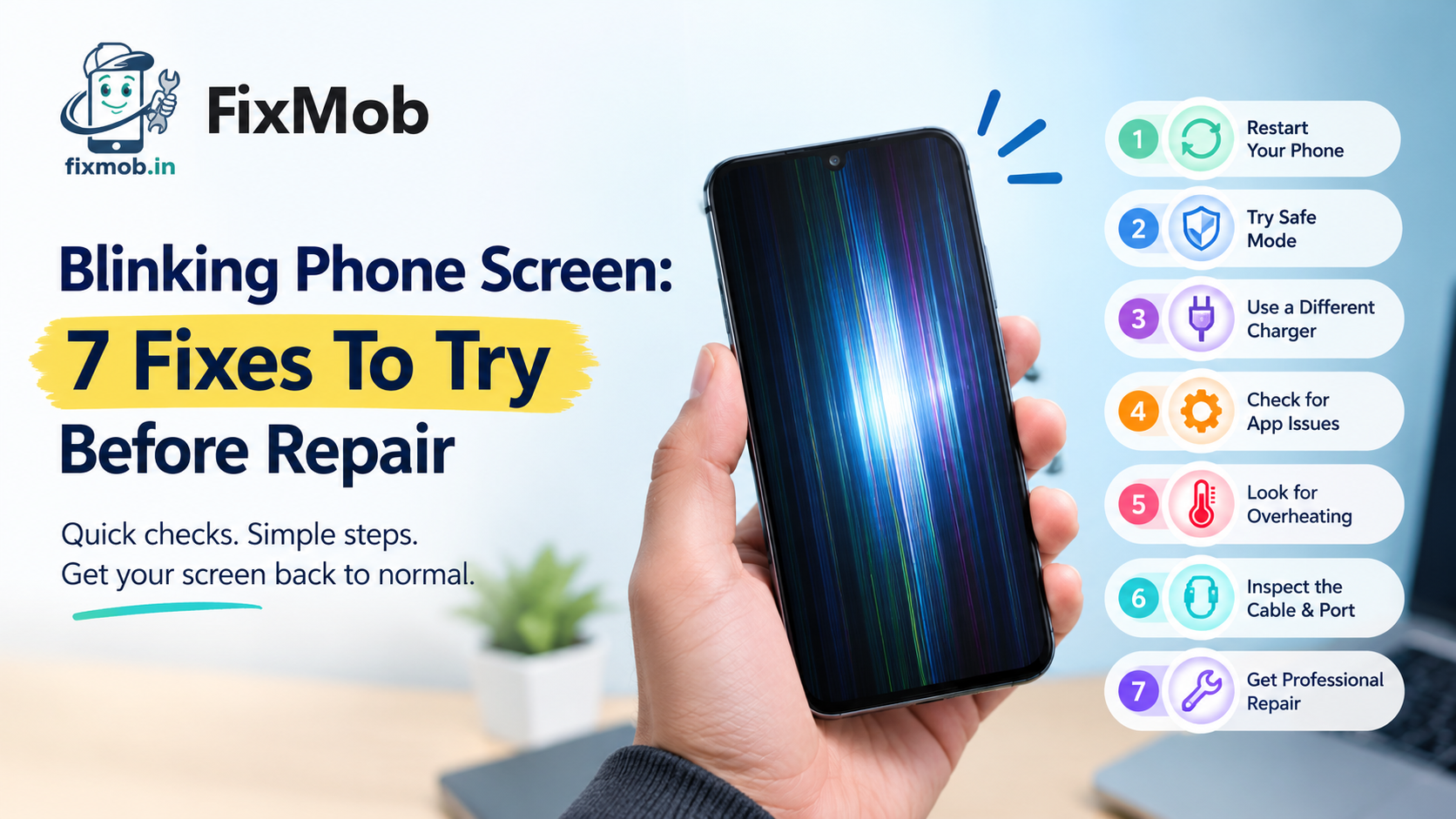
Blinking Phone Screen: 7 Fixes To Try Before Repair
Blinking Phone Screen: Why It Happens And How To Stop It
A blinking phone screen usually points to a loose display connection, a damaged panel, a poor charger or a software glitch. Free checks sort out the software cases first, and when the panel is the culprit, a doorstep screen replacement takes 30 to 60 minutes.
Flicker is a symptom, not a diagnosis. If the screen also taps by itself, our guide to ghost touch on a phone screen covers that separate fault. Here you’ll get the likely causes, a quick way to split software from hardware, and a fix ladder to climb in order.
At A Glance
• Free checks: Restart, screen recording test, safe mode, charger swap and protector off
• Duration: 30 to 60 minutes at your doorstep
• Warranty: 6 months on the replaced part
• Payment: After the repair is complete
• Blinking that survives safe mode usually points to hardware, not an app.
What Causes A Blinking Phone Screen?
Most cases of a blinking phone screen trace back to four things: a loose or damaged display cable, a failing panel, electrical noise from a cheap charger, or a clash between an app and a setting. Heat, moisture and age make each one worse.
Inside the phone, the picture travels from the board to the panel through a thin flex cable. If that link is worn or slightly loose, the display can drop out for a split second. A drop, a bent frame or a rushed earlier repair can all start it.
Here is how the usual suspects tend to show up:
• Loose display cable: the picture cuts out when the phone flexes or gets knocked.
• Failing panel: lines, ink blots or flicker at low brightness often come from the panel itself.
• Poor charger: a cheap adapter can push electrical noise into the screen circuits.
• App or update clash: a recent install or system update starts the blinking.
• Moisture: liquid or humidity gets into the display layers and disturbs the signal.
Moisture deserves its own warning. If the phone got wet, switch it off and keep it off, then read our water damage repair cost guide for the stages of damage. An early clean is the cheapest route.
Why Is Your Phone Screen Blinking Only Sometimes?
A blinking phone screen that comes and goes is easier to solve than one that blinks nonstop, because the trigger is a clue. Blinks at low brightness, while charging, in one app or when the phone is warm each point to a different cause.
Keep a note for a day. When does the phone screen blinking start, and what was on screen at the time? Those two answers usually narrow the cause faster than any tool.
|
Pattern |
Likely cause |
First move |
|
Blinks at low brightness |
Panel or connector fault |
Raise brightness and switch off adaptive brightness |
|
Blinks only while charging |
Noisy charger or damaged cable |
Try another charger and cable |
|
Blinks in one app only |
App bug |
Update or uninstall that app |
|
Blinks after a drop |
Loose cable or damaged panel |
Book a diagnosis |
|
Blinks after water contact |
Moisture inside the display |
Power off and get it inspected |
|
Blinks when the phone is warm |
Heat stressing a weak connection |
Let it cool and remove the case |
Whichever row you match, record a short clip of the blink. Film it at its worst, because a technician can read a lot from ten seconds of footage.
How Can You Tell A Software Glitch From A Hardware Fault?
Record the screen with your phone’s built-in recorder while it blinks, then play the clip back. If the blinking phone screen looks perfectly steady in the recording, the software drew a clean picture and the fault sits in the panel or its cable.
A screenshot works the same way for lines or blots that stay put. Our guide to free display tests you can run at home walks through the screenshot, safe mode and charger checks in more detail.
|
Clue |
Points to software |
Points to hardware |
|
Safe mode |
Blinking stops |
Blinking carries on |
|
Screen recording |
Flicker shows on playback |
Playback looks steady |
|
What changed |
An app or update came first |
A drop or spill came first |
|
Other symptoms |
Limited to one app |
Lines, ink blots or dead touch |
Nothing here needs tools, just about ten minutes and a charged phone. Take the screen protector off before you decide. A lifted protector can trap moisture against the panel and fake a hardware fault.
How Do You Fix A Mobile Screen Blinking Problem Step By Step?
Work up the ladder in order and stop the moment the blinking stops. Fixing a blinking phone screen this way costs nothing but time, and only the last rung touches your data.
1. Restart the phone. A stuck display process often clears with a simple reboot, so start here.
2. Switch off adaptive brightness. Open Settings, tap Display and turn it off. Some brands call it auto brightness.
3. Swap the charger and cable. Use the original if you still have it, and test the phone unplugged for a while.
4. Remove the case and screen protector. Pressure or trapped moisture can mimic a hardware fault.
5. Boot into safe mode. On most Android phones you hold the power button, then long press Power Off and confirm, though the exact route varies by brand. Safe mode runs only the core apps, so if the blinking stops there, uninstall the newest apps one at a time.
6. Install pending updates. Use stable Wi-Fi and enough battery, since a bad software build is sometimes fixed by a later one.
7. Back up, then reset. This is the last software step, so copy your photos and chats first.
Samsung publishes almost the same order in its flicker troubleshooting guide for Galaxy phones, and it adds that blinking which survives safe mode is probably hardware. That advice suits any mobile screen blinking problem, not only a Galaxy.
When Does A Blinking Screen Need A Repair, And What Does It Cost?
Book a repair when the blinking phone screen survives safe mode, started after a drop or spill, or comes with lines, ink blots or dead touch. At that point the panel or its cable is the suspect, and a doorstep replacement takes 30 to 60 minutes.
A decent technician checks the connector first. A loose cable can imitate a dead panel, and reseating it is the cheaper job when it works. If the panel has failed, it usually comes out as one bonded assembly with the glass and touch layer.
|
Situation |
Usual route |
Time |
|
Loose connector |
Reseat, then test |
Often the same visit |
|
Damaged panel, lines or blots |
Full display replacement |
30 to 60 minutes |
|
Liquid damage |
Board-level diagnosis first |
Longer, quoted after inspection |
|
Software only |
The free fixes above |
No repair needed |
Price depends on your model, the panel type and its grade. Our display guide puts optical in-display panels at roughly 4,000 to 15,000 rupees across Bangalore, so compare quotes on the same grade and warranty. The FixMob repair services page lists everything else we fix.
If the phone is still under warranty and shows no sign of impact, call the brand first. A free or discounted fix is worth one phone call.
How Do You Check The Repair Before You Pay?
Run a short test while the technician is still standing there: full white, full black, a brightness slide from lowest to highest, touch across every corner, and the fingerprint reader. It takes about five minutes and settles most disputes before any money changes hands.
1. Full white: open a blank white page and look for a yellow tint, dark corners or dead pixels.
2. Full black: dim the room and look for glow, ink blots or lines.
3. Brightness: slide it from lowest to highest and watch for any blink, since that is the fault you booked for.
4. Touch: draw slowly along every edge and corner, then pinch and zoom with two fingers.
5. Fingerprint and camera: delete and re-enrol your print, then take a selfie.
You pay after the repair, so speak up if anything looks off. A written warranty should cover a fault tied to the new panel, though it won’t cover a fresh crack or a later drop.
Frequently Asked Questions
What should I do first if my phone screen is blinking?
Restart it, then test in safe mode with a different charger. If the blinking survives all three checks, the cause is probably hardware.
Can a blinking screen fix itself?
Sometimes, when an app or a stuck process caused it, and a restart clears it. A cable or panel fault rarely heals, and heat and daily flexing tend to make it worse.
Does a flickering display always mean a new screen?
No, because a blinking phone screen can come from a charger, an app or a loose cable. Lines, ink blots or dead touch alongside it point to the panel.
Will replacing the display erase my data?
No, because swapping the display leaves your storage untouched. A quick backup is still sensible, and essential before any factory reset.
Can a screen protector make the screen blink?
Yes, a lifted or badly fitted protector can trap moisture and fake a fault. Peel it off and test the bare glass for a few minutes first.
How long does a doorstep display replacement take?
Most take 30 to 60 minutes, and you pay after the repair. FixMob gives a 6-month warranty on the part it fits.
What Should You Do If The Blinking Won’t Stop?
Run the free fixes in order, and if the blinking is still there in safe mode, book a doorstep screen repair with FixMob. Pick your brand and model, share your clip of the blink, and pay once the phone passes your own checks.
The sooner a blinking phone screen gets looked at, the cheaper the fix tends to be, because ink blots and cracks only spread.
Serving Bengaluru, Karnataka.